

Before you start
You need Lightroom Classic, a Dreamstime contributor account with FTP access, your numeric account ID, and finished JPEGs imported into your catalog. Keep original files available locally or on an accessible drive.
This Expolumi guide covers plug-in installation and the Lightroom publishing workflow. For Dreamstime's account-specific FTP settings and upload-folder rules, follow Dreamstime's official FTP instructions. Your email address is not the FTP username; find your numeric ID in your Dreamstime account information.
The plug-in works independently of Alamy Publisher. It transfers original files; it does not apply edits, complete submission forms, or synchronize review status. It is available on Adobe Exchange; it is distributed only through Adobe Exchange and installed with the Creative Cloud desktop app, with no development tools or separate FTP client.
Install & connect
FTP transfers are unencrypted. This includes your password and photos. Use Dreamstime's HTTPS web uploader if you require encrypted transfer.
- Install Expolumi Dreamstime Publisher from Adobe Exchange: in the Creative Cloud desktop app, signed in with your Adobe ID, open Stock & Marketplace > Plugins, search for Expolumi, and choose Get.
- Restart Lightroom Classic and confirm Dreamstime Publisher is enabled in File > Plug-in Manager. Install only one copy; remove any earlier folder-based entry first.
- Go to Library > Publish Services > Dreamstime Publisher > Set Up.
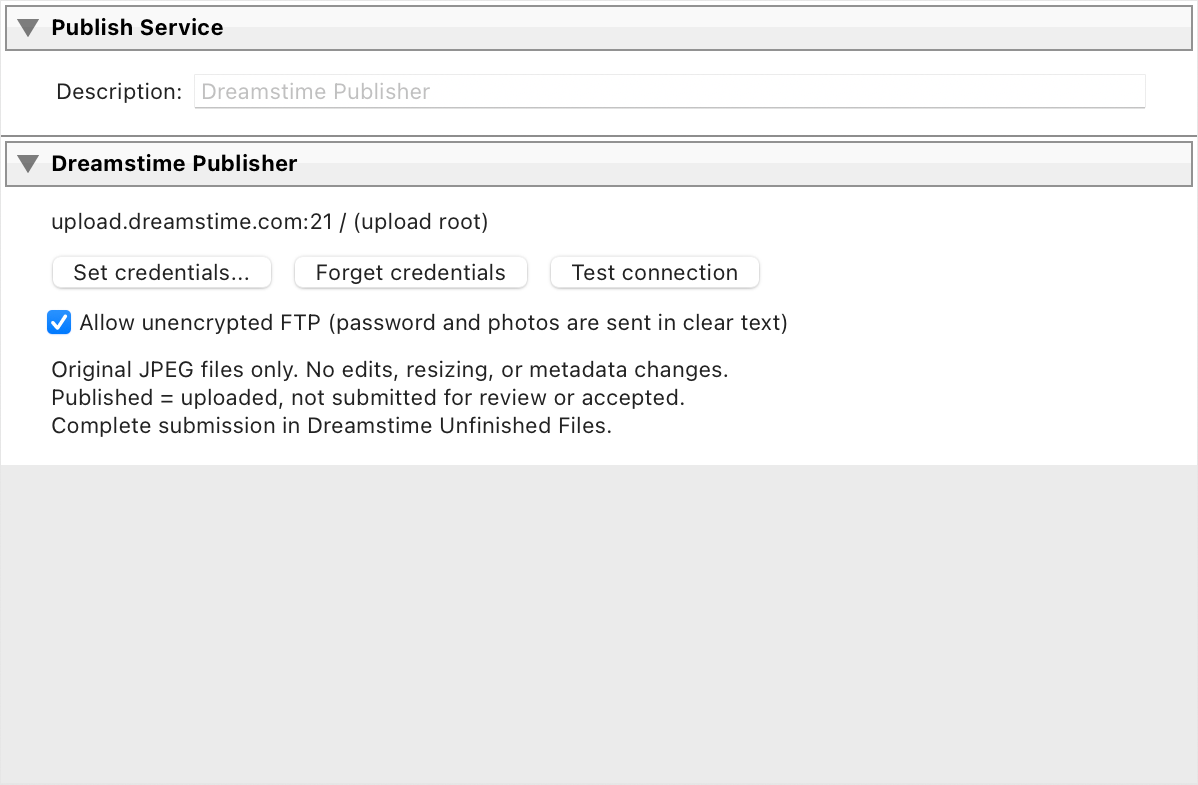
- Choose Set credentials... and enter your numeric account ID and case-sensitive account password. IDs are kept as text, including leading zeroes. Select Save locally.
- Review the transfer notice and enable Allow unencrypted FTP if you agree. Choose Test connection.
- Save the connection and use Dreamstime uploads or another collection under this service.
The server and root upload directory are fixed. JPEGs do not go into the additional-formats or model-release directories. A connection test checks login and listing access only; it does not upload/delete files or prove submission permission.
One Dreamstime account is shared by this plug-in's local publish connections. Save locally takes effect immediately, even if you cancel Publishing Manager later. Avoid account changes during uploads.
Publish your photos
- Prepare submission-ready JPEGs, import them, and keep their originals accessible.
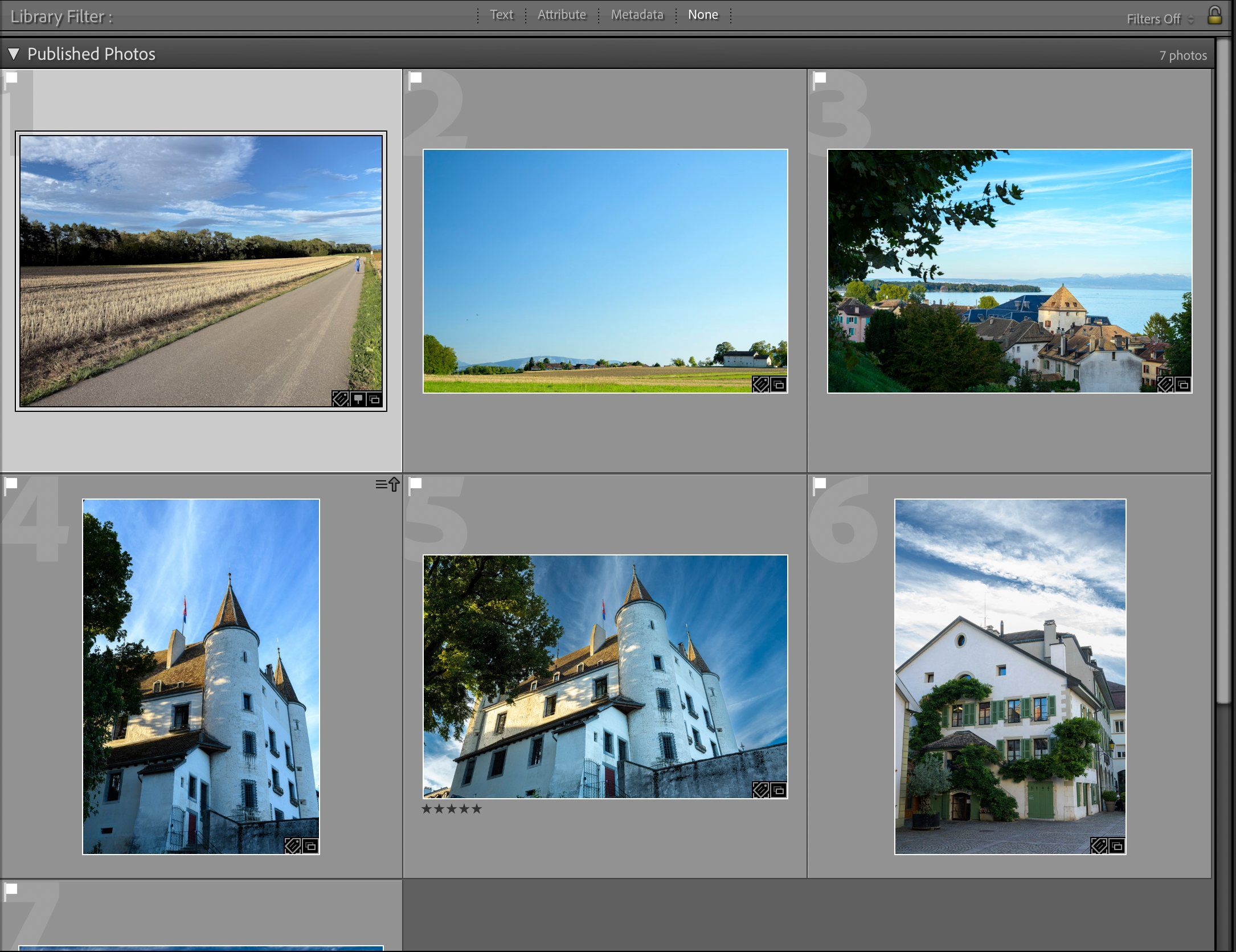
- Drag photos to Dreamstime uploads. Queuing them does not begin a transfer.
- Click Publish and review the completed, failed, and unfinished counts.
- After ingestion, open Unfinished Files on Dreamstime. Review metadata, add required categories and releases, and complete submission. Consult Dreamstime's contributor FAQ for current submission requirements, model releases, and review guidance.
Published means transferred, not submitted for review or accepted. Files disappearing from FTP may have moved to Unfinished Files. Allow for processing and check your account before retrying.
Files & metadata
The plug-in uploads the original JPEG unchanged, with the original filename. It does not render, resize, recompress, watermark, write metadata, or delete your files. RAW, TIFF, PNG, video, virtual copies, and missing originals are rejected. Extra formats, releases, and CSVs are not uploaded.
Only metadata already embedded in the JPEG is sent. Catalog-only keywords, captions, and Develop changes are not applied. Save metadata or export a finished full-resolution JPEG with the desired metadata, import it, and verify the actual file before publishing.
Any embedded GPS is included. Other applications and Lightroom's metadata settings can independently modify the source, so do not edit, rename, or move it while uploading. You remain responsible for agency requirements, image quality, and account eligibility.
Tracking & retries
Matching remote filenames are not intentionally overwritten. A failed filename check blocks upload. Local history tracks filenames and transfer states separately from Alamy.
A confirmed upload blocks resubmission under that name for the account. Re-publishing cannot update an existing Dreamstime submission. Renaming files, changing computers, resetting preferences, or using another client can bypass local checks; duplicate protection is best-effort, not global.
There are no automatic FTP retries. A failure stops the remaining batch, and uncertain outcomes require explicit confirmation before retrying. Cancellation takes effect between operations; an in-flight native call may finish first.
Removing a photo or collection only changes Lightroom tracking. It never withdraws a Dreamstime submission, and upload history remains. If a transfer succeeded but Lightroom lost the result, verify it on Dreamstime and use Mark as Up-to-Date where appropriate. Keep a separate submission record.
Credentials & privacy
Your numeric account ID and password use Lightroom's encrypted local storage. They are not stored in presets, catalog properties, source files, command lines, or plug-in logs. Password fields are masked; closing the dialog clears its transient fields. Cancel without saving to preserve existing credentials.
The plug-in sends credentials and original JPEGs directly to Dreamstime, without an Expolumi-operated backend, analytics, or remote credential storage.
Forget credentials clears the saved Dreamstime values without affecting Alamy. It does not revoke your website password, clear history, remove submissions, or guarantee backup erasure. See privacy and data handling.
Update & troubleshoot
Creative Cloud desktop installs updates (Stock & Marketplace > Plugins > Manage plugins); restart Lightroom afterwards. Avoid duplicate installations and do not update during a transfer. Forget credentials before uninstalling the plug-in there; removal alone does not clear them.
If login fails, check the numeric ID rather than an email address. If a photo is rejected, check its original JPEG is present and is not a virtual copy. For uncertain transfers, check Unfinished Files and existing submissions before retrying.
Local diagnostics use DreamstimePublish.log. Typical locations are %LOCALAPPDATA%\Adobe\Lightroom\Logs\LrClassicLogs on Windows and ~/Library/Logs/Adobe/Lightroom/LrClassicLogs on macOS. Older versions may use Documents/Lightroom Logs.
Logs contain fixed stage names, counts, and batch indexes, not credentials, filenames, paths, directory listings, or raw server exceptions. Review attachments before sharing. Logging failures do not stop uploads.
Check your setup
Back up your catalog, test the connection, and publish one finished JPEG first. Confirm it appears in Dreamstime Unfinished Files before uploading a larger collection. Repeat this check after changing Lightroom, your operating system, or the plug-in.
Support & feature requests
Something not working as described here? Open a support case. Have an idea? Request a feature, or ask a question in Discussions.
These are public on GitHub and need a GitHub account. Leave out passwords, keys, account IDs, and private file paths. For your Dreamstime account or submissions, contact Dreamstime.