

Getting a photograph ready for stock takes judgment: choosing the frame, finishing the edit, writing the metadata. Sending it to the agency should be the easy part. In practice, the last mile often becomes its own small workflow: export again, find the folder, open an uploader, select the files, and try to remember what you have already sent.
This article describes a routine that keeps that last step predictable. It works with any upload tool. At the end I show how I automated it for Alamy and Dreamstime with two small plug-ins for Lightroom Classic that I built.
1. Decide which file is the submission
Agencies read the title, caption, and keywords that are embedded in the file. They never see your Lightroom catalog. So before uploading, be clear about which file is the one you submit:
- Work from a finished JPEG. If you edit RAW files, export a full-resolution JPEG with the metadata you want, and import it back into the catalog. That JPEG is now your submission master.
- Write the metadata into the file. If you edit metadata on an existing JPEG, use Metadata > Save Metadata to File (or enable automatic XMP writing). Catalog-only edits do not travel with the file.
- Check before sending. Open the file in another viewer, or look at the Metadata panel's IPTC fields after saving, to confirm the title and keywords are really embedded.
This also makes resubmissions easy: the same file, with the same bytes and name, is what you send again if an agency asks.
2. Keep a record of what you sent
Duplicate uploads waste your time and the reviewers'. Without a record, it is easy to send the same photo twice, especially after an interrupted transfer.
- Keep one place in Lightroom that lists what has gone to each agency. A Publish Service collection is ideal: Lightroom marks each photo as published and moves edited photos back to Modified Photos to Re-Publish.
- After a failed or uncertain transfer, check the agency's upload area first, then retry. A retry can create a duplicate if the first attempt actually arrived.
- Keep filenames stable. A renamed copy looks like a new photo to both you and the agency.
3. Transferred is not submitted
An upload only places the file in the agency's queue. The submission is finished on the agency's website:
- Alamy: check ingestion and quality control, then complete the required details in Image Manager.
- Dreamstime: open Unfinished Files, complete categories, releases, and metadata, and submit for review.
Treat "published" in Lightroom as "transferred". Acceptance is a separate result that only the agency can give you.
4. Know how your files travel
Many agencies accept uploads by FTP, their web uploader, or both. Plain FTP is convenient for batches but is not encrypted; if that matters for a set of photos, use the agency's HTTPS web uploader for them.
The routine in Lightroom Classic
This is how I apply these principles with Expolumi Alamy Publisher and Expolumi Dreamstime Publisher. Each adds a Publish Service for its agency, so the Publish Services panel becomes the record of what was sent.
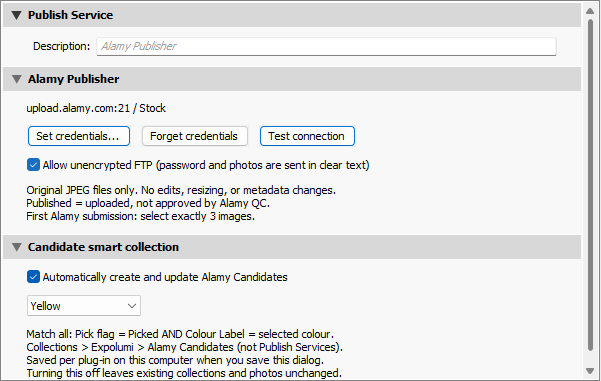
The plug-ins upload the original finished JPEG exactly as it is: no resizing, recompression, renaming, or rendering, so the file you checked is the file the agency receives. They keep a local upload history, check for a file with the same name before sending, and refuse to resend a photo already recorded as uploaded. After an uncertain transfer they ask you to check the agency instead of retrying automatically.
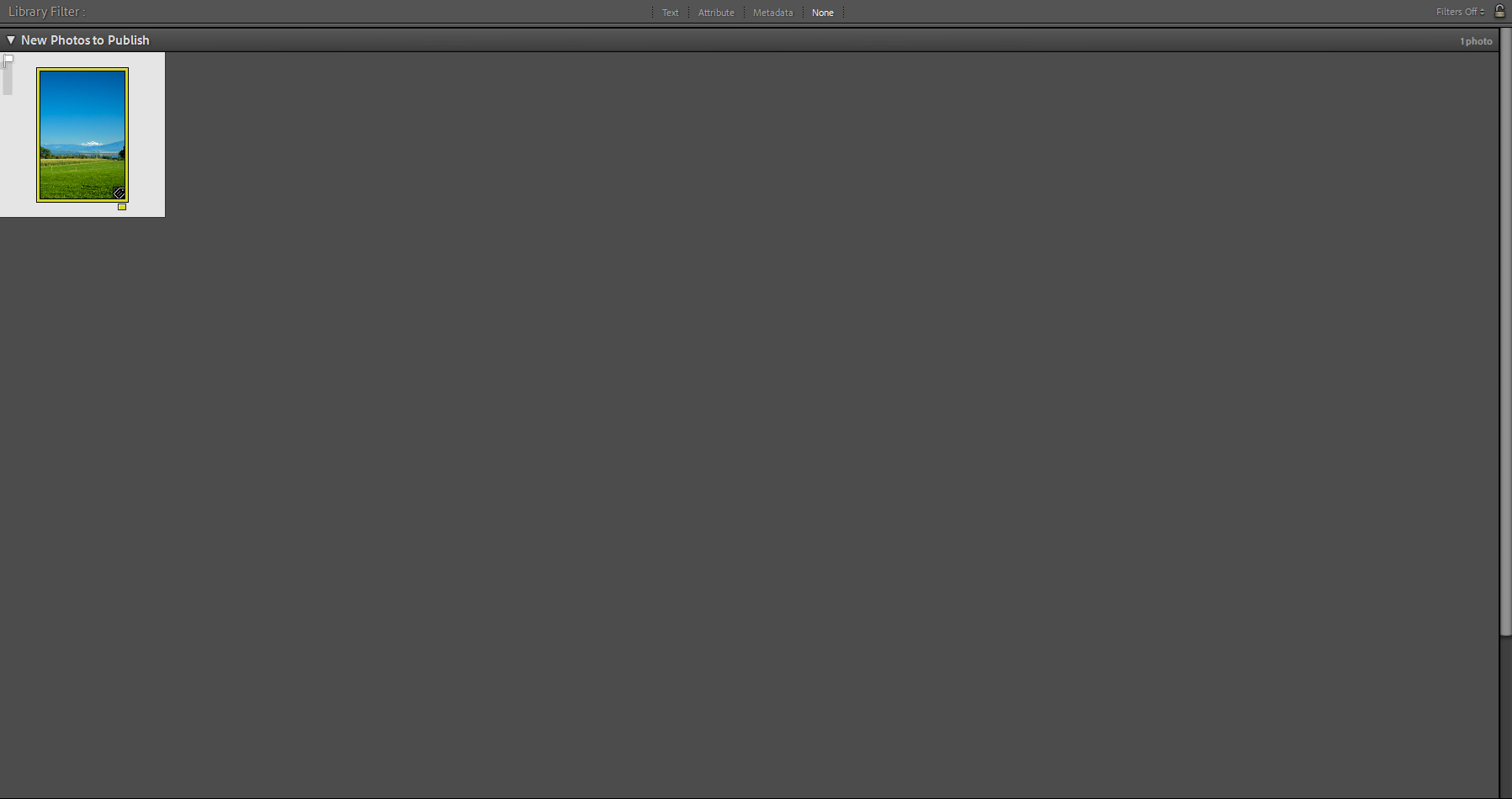
The routine for either agency:
- Prepare and check the finished JPEG (step 1), then add it to the agency's published collection.
- Click Publish. The first time, set up the service, save your agency credentials locally, and test the connection.
- Read the transfer summary.
- Finish the submission on the agency's website (step 3).
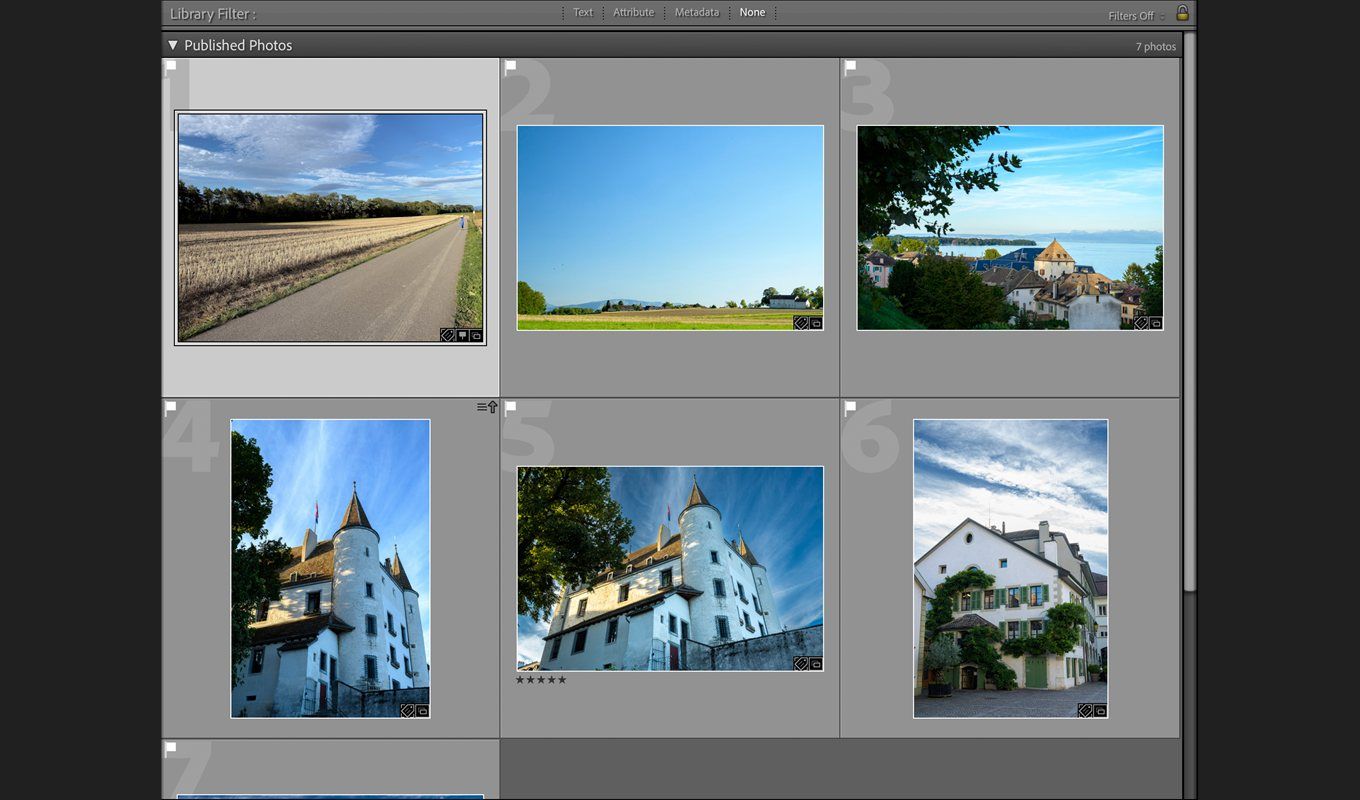
What the plug-ins deliberately do not do: render Develop edits, write catalog-only metadata into the file, delete or withdraw photos at the agency, or report acceptance. Removing a photo from a published collection only stops tracking it in Lightroom.
Where this fits
Uploading is one step in a longer workflow. Before it comes writing titles, captions, and keywords that buyers can find; around it, keeping track of which photos are for stock or exclusive art, and their status at each agency. Articles on both are coming soon.