
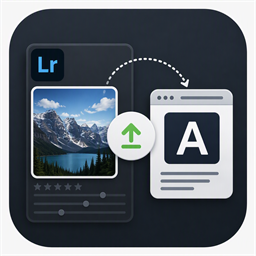
Publish / On Adobe Exchange
Expolumi Alamy Publisher
Send photos from a Lightroom Classic Publish Service straight to Alamy, then finish the submission in Alamy Image Manager.
Version 1.0 is on Adobe Exchange and installs with the Creative Cloud desktop app.

What it does
From your catalog to your next submission.
No separate FTP client, no manual file juggling.
A Publish Service for Alamy
Drag photos into Stock uploads and click Publish. They go to Alamy's Stock upload folder, and Lightroom lists them under Published Photos.
Duplicate protection
A local upload history refuses a file name you have already sent, and a file already on Alamy is never overwritten.
You finish the submission
Published means transferred. Complete the details and follow quality control in Alamy Image Manager.
Coming in version 1.1
Publish any photo: Lightroom renders a full-size JPEG with your edits and metadata from raw, TIFF, PSD, or JPEG originals. Read the 1.1 guide.
Where it fits
The publishing step.
With Publishing Workflow, Alamy Candidates are queued for you and marked Submitted after publishing.
- 01 / Plan
Decide where it goes
Mark photos for stock or exclusive art and pick a license type for each agency. They become Candidates.
- 02 / Describe
Describe it well
Draft titles, captions, and keywords with AI, then review every suggestion. The license type picks commercial or editorial wording.
- 03 / Publish
Send it to agencies
Candidates wait in each agency's publish service, including Lightroom's own Adobe Stock service. You decide when to click Publish.
- 04 / Track
Know where it stands
Published photos are marked Submitted. Record Accepted or Rejected once the agency has reviewed them.
And for your own albums: photos you mark Album can go into personal OneDrive albums.
Pluggable by design. Alamy Publisher works on its own, and so does every other Expolumi plug-in. Use one, some, or all.
Details
Before you start.
- Requirements
- Lightroom Classic and an Alamy contributor account with FTP access.
- Transfer
- Alamy's upload uses plain FTP, which is unencrypted. The plug-in asks for your explicit consent, and your credentials are stored in Lightroom's encrypted storage on your computer.
- Version 1.0 files
- Version 1.0 sends original JPEG files unchanged, with their file names. Save your metadata to the file before publishing.
- Works with
- Publishing Workflow and AI Photo Tagging. Neither is required.
- Your data
- See privacy and data handling.
Get started