

Describe / Coming soon
Expolumi AI Photo Tagging
Turn a photo into a starting point for titles, captions, and keywords. Review every suggestion before it reaches your Lightroom Classic catalog.
Not yet released. The guide describes the upcoming version; details may change before release.
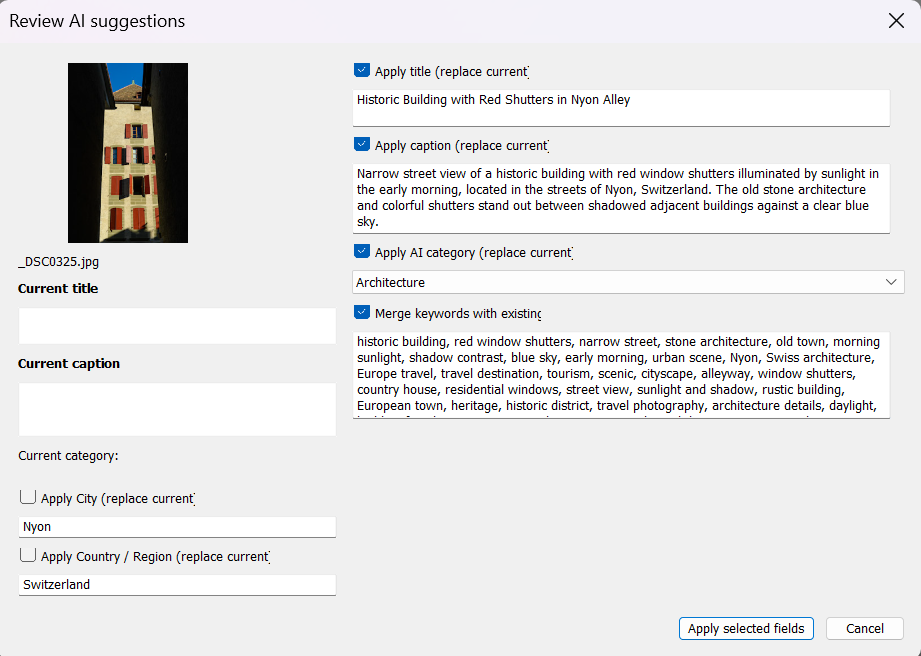
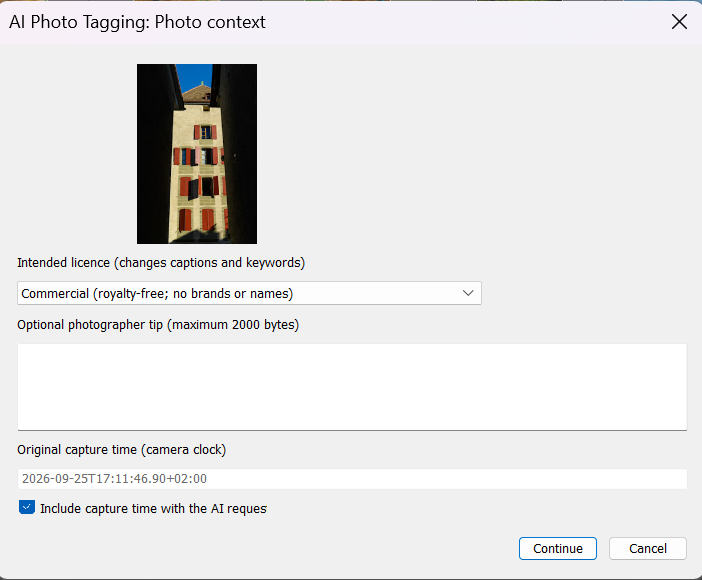
Screenshots
See it in Lightroom Classic.
From the upcoming version; details may change before release. Each step is explained in the user guide.
What it does
Better metadata, still in your words.
AI drafts. You decide what is applied.
Suggestions you review
One photo at a time. Titles, captions, and keywords arrive as editable suggestions, and nothing is applied until you choose it.
Commercial or editorial
Captions and keywords follow the licence you intend. Editorial captions start with a dateline; commercial suggestions leave out brands and names.
Keywords that merge
Up to 50 relevant stock keywords are merged with your existing tags. Nothing you already have is removed.
Your own AI resource
Requests go to your own Microsoft Foundry resource with your key, and a reduced preview is sent, not your original file.
Where it fits
Describe before you publish.
With Publishing Workflow (coming soon), the license type you set there is preselected.
- 01 / Plan
Decide where it goes
Mark photos for stock or exclusive art and pick a license type for each agency. They become Candidates.
- 02 / Describe
Describe it well
Draft titles, captions, and keywords with AI, then review every suggestion. The license type picks commercial or editorial wording.
- 03 / Publish
Send it to agencies
Candidates wait in each agency's publish service, including Lightroom's own Adobe Stock service. You decide when to click Publish.
- 04 / Track
Know where it stands
Published photos are marked Submitted. Record Accepted or Rejected once the agency has reviewed them.
And for your own albums: photos you mark Album can go into personal OneDrive albums.
Pluggable by design. AI Photo Tagging works on its own, and so does every other Expolumi plug-in. Use one, some, or all.
Details
Before you start.
- Requirements
- Lightroom Classic and your own Microsoft Foundry resource with a vision model deployment and API key. Would you rather have AI taggings included in an Adobe subscription, with no Azure setup? Tell us in a feature request.
- Costs
- Microsoft bills the AI usage to your Azure subscription, separately from the plug-in.
- Works with
- Publishing Workflow (coming soon) preselects commercial or editorial; the Alamy, Dreamstime, Getty, and Shutterstock publishers send the result. None of them is required.
- Your data
- See privacy and data handling for what is sent to your Foundry resource.
- User guide
- Expolumi AI Photo Tagging guide: install, Foundry setup, tagging a photo, and troubleshooting.
- Availability
- Coming soon to Adobe Exchange, installed with the Creative Cloud desktop app.
Set it up