

Publish / Coming soon
Expolumi Shutterstock Publisher
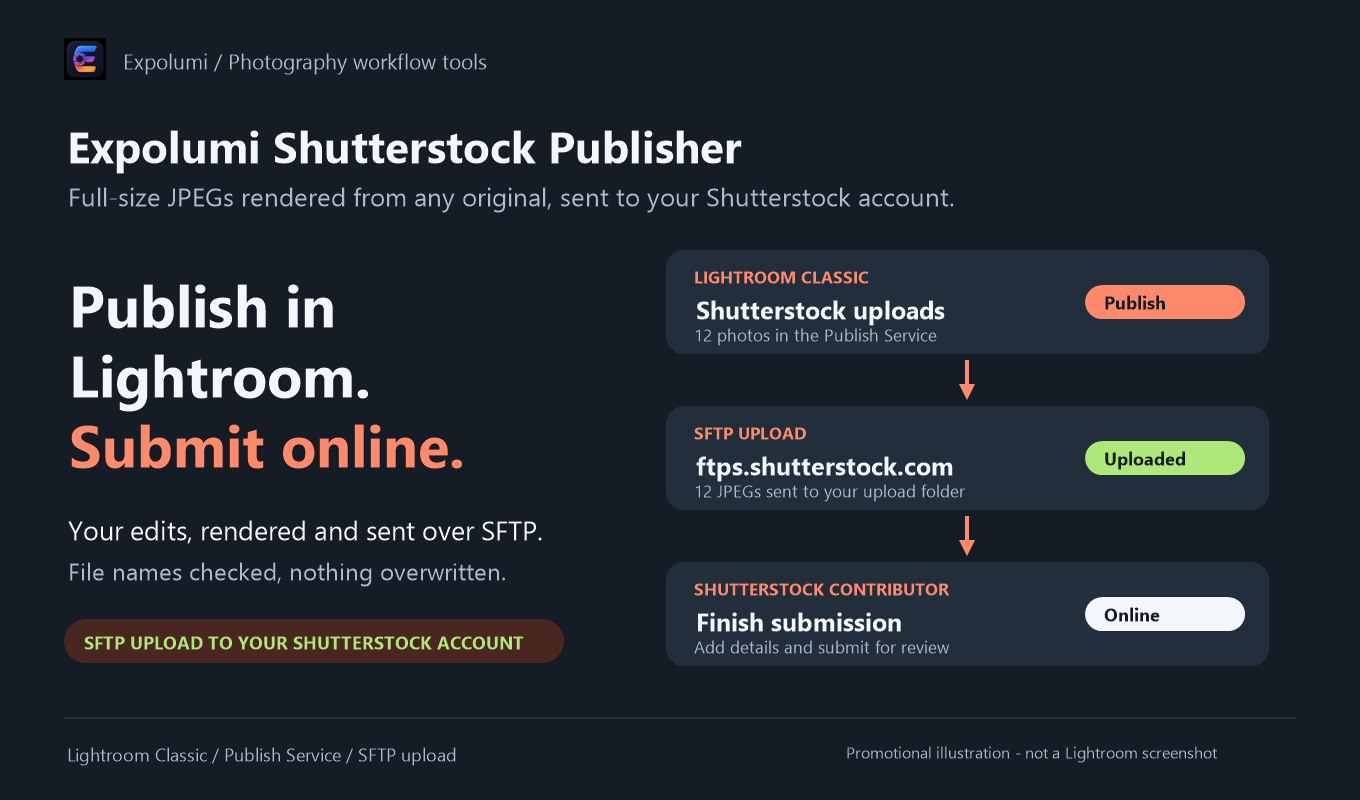
Upload your photos from a Lightroom Publish Service to your Shutterstock contributor account as full-size JPEGs, then finish the submission on Shutterstock.
Not yet released. The guide describes the upcoming version; details may change before release.
What it does
Straight to your account.
Lightroom cannot use Shutterstock's documented FTPS upload. This plug-in uses SFTP, which encrypts the connection.
Any original, rendered
Raw, TIFF, PSD, and JPEG originals are rendered as full-size JPEGs with your edits and metadata, named after the original. Your original files are never changed.
Encrypted transfer
Your login and photos travel over SFTP. The login is stored with Lightroom's encrypted password storage and never written to logs.
Duplicate protection
File names are checked before upload and remembered afterwards. Uploading a photo again needs one confirmation per batch, and nothing is overwritten.
Clear connection errors
Test connection and publishing say whether Shutterstock refused the login or the server could not be reached.
Where it fits
The publishing step.
With Publishing Workflow, Shutterstock Candidates are queued for you and marked Submitted after upload.
- 01 / Plan
Decide where it goes
Mark photos for stock or exclusive art and pick a license type for each agency. They become Candidates.
- 02 / Describe
Describe it well
Draft titles, captions, and keywords with AI, then review every suggestion. The license type picks commercial or editorial wording.
- 03 / Publish
Send it to agencies
Candidates wait in each agency's publish service, including Lightroom's own Adobe Stock service. You decide when to click Publish.
- 04 / Track
Know where it stands
Published photos are marked Submitted. Record Accepted or Rejected once the agency has reviewed them.
And for your own albums: photos you mark Album can go into personal OneDrive albums.
Pluggable by design. Shutterstock Publisher works on its own, and so does every other Expolumi plug-in. Use one, some, or all.
Details
Before you start.
- Requirements
- Lightroom Classic and a Shutterstock contributor account. Sign in with your Contributor email or username.
- SFTP
- Shutterstock documents FTPS, not SFTP, for contributors. Its server accepts SFTP on port 22, which this plug-in uses; Shutterstock may restrict or change it without notice.
- Published means
- Uploaded. It is not a Shutterstock submission or acceptance; you finish and submit on Shutterstock.
- Works with
- Publishing Workflow and AI Photo Tagging. Neither is required.
- Your data
- See privacy and data handling.
- Availability
- Coming soon to Adobe Exchange, installed with the Creative Cloud desktop app.
Set it up